

- Joined
- Nov 21, 2019
- Messages
- 6,900
- Reaction score
- 127,110
- Points
- 11
- Age
- 55
- Location
- Орёл
- 💎VM
- 442,401.50
- New country
- 🌐Единия
- Enneatype
- 5 (?)
- Gender
- Male
- Ashram resident
- Yes
At my Ashram, I teach computer literacy (among many other things). Here I wrote about gestures on phones: https://www.youryoga.ru/sadhanaashram/threads/ehkonomim-vremja-zhesty.2558/
And it is clearly already becoming the same on computers, especially in Windows 11.
It can now be stated with certainty that the time when a touchpad could not replace a mouse has passed. That is no longer the case.
It is now very common to hear that a touchpad can not only replace a mouse, but that using it has become MORE CONVENIENT.
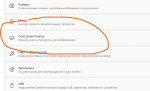
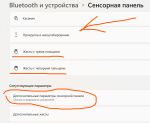
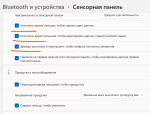
But it is important to know how to use it. You probably need to customize it to suit yourself. And a touchpad has many gestures.
Moreover, I have said more than once that it is useful to work with your left hand at times and your right hand at others. With a touchpad, you can do this using different hands. This develops the brain.
If you decide to switch exclusively to a touchpad, you will have to watch several videos and delve into the Windows settings.
You can customize everything to suit yourself. Almost any gesture.
Naturally, using a touchpad also saves space on your desk. Especially if you like working outdoors, for example on a park bench.
Touchpad gestures make the brain work differently. It is somewhat like the way an artist works when drawing. A mouse somewhat dulls the mind with its simplicity and logic. I would put it this way: the touchpad is what makes the right hemisphere of the brain work, while the mouse works the left.
Let me repeat once again: if it seems to you that a touchpad is inconvenient, it means that you have not studied the subject thoroughly enough. You have not configured it properly insettings.
For example, you can assign a key combination such as Alt + F4 to a gesture to close a window.
All keyboard shortcuts:
For example, you can hide the Taskbar on the desktop and move between windows using the touchpad. This increases the screen area... There are countless ways to make working on a computer easier.
Even if you cannot do without a mouse in some situations, you can use both the mouse and the touchpad at the same time. The touchpad's functionality is very extensive nowadays. And let me repeat: it is much easier to engage the left hand with a touchpad. With a mouse, people are simply tethered to the computer by their right hand! This literally dulls them and makes them one-sided.
Of course, you can use the touchpad with both hands, for example when copying text.
This is especially valuable for those developing the Third Eye and intuition at my Mahapurna school.
There are quite a few videos on how to use it. Often, the video is not about the same laptop as yours, but you can watch those too, since the principle is the same everywhere.
And it is clearly already becoming the same on computers, especially in Windows 11.
It can now be stated with certainty that the time when a touchpad could not replace a mouse has passed. That is no longer the case.
It is now very common to hear that a touchpad can not only replace a mouse, but that using it has become MORE CONVENIENT.
But it is important to know how to use it. You probably need to customize it to suit yourself. And a touchpad has many gestures.
Moreover, I have said more than once that it is useful to work with your left hand at times and your right hand at others. With a touchpad, you can do this using different hands. This develops the brain.
If you decide to switch exclusively to a touchpad, you will have to watch several videos and delve into the Windows settings.
You can customize everything to suit yourself. Almost any gesture.
Naturally, using a touchpad also saves space on your desk. Especially if you like working outdoors, for example on a park bench.
Touchpad gestures make the brain work differently. It is somewhat like the way an artist works when drawing. A mouse somewhat dulls the mind with its simplicity and logic. I would put it this way: the touchpad is what makes the right hemisphere of the brain work, while the mouse works the left.
Let me repeat once again: if it seems to you that a touchpad is inconvenient, it means that you have not studied the subject thoroughly enough. You have not configured it properly insettings.
For example, you can assign a key combination such as Alt + F4 to a gesture to close a window.
All keyboard shortcuts:
How to open a program from the Start menu Open the Start menu by pressing the Windows + Ctrl + Esc hotkeys simultaneously. Windows 8 does not have a Start menu, so pressing Windows + Ctrl + Esc opens the Start screen or desktop. In the Start menu, use the arrow keys on the keyboard to move the cursor up, down, left, or right. Press Enter to open the desired program. You can also open a program by pressing the Windows key, typing the program name, and pressing Enter. How to open programs on the desktop. The Tab hotkey on the keyboard will move you to the Desktop; Tab can also switch between the desktop, Start menu, and items on the taskbar. In some cases, you may need to press Tab repeatedly to move to the desktop icons. In some cases, you may need to press the Tab key several times before reaching the desktop icons. After selecting one of the desktop icons, you can move to other icons using the arrow keys. Select the desired icon and press Enter to open the program. Hotkey for closing a window Pressing the Ctrl + F4 hotkeys simultaneously on the keyboard will close the program window or tabs.You can also use the Alt+Space keyboard shortcut. In the menu that opens, press the Down Arrow to select “Close” or “Exit,” then press Enter. Minimizing or shrinking a window To minimize a window, press the Windows key + Down Arrow simultaneously. Maximizing a window To maximize a window, press the Windows key and the Up Arrow simultaneously. Moving a window To move a window, it must be in windowed mode; you can switch to it using the Alt+Space hotkey. To display the window in windowed mode, press Alt and Space simultaneously, select “Restore,” and press Enter. You can also move the window from the same menu by selecting “Move” and then using the arrow keys to move it. Switching between tabs To move from left to right in the selected window, press Ctrl+Tab simultaneously; to move from right to left, press Ctrl+Shift+Tab. Switching between open windows and applications To move between open programs on your desktop, hold down the Alt key, then press Tab to display all currently open windows. To select the desired window, continue pressing Tab while holding Alt. When the desired window or program is selected, release both keys to make it the active window. Moving between fields and buttons in a window To move the cursor To move between fields in a dialog box, use the Tab, Spacebar, arrow, and Enter keys. If you need to click the OK or Cancel button, press the Spacebar or Enter key. Working with and navigating text When working with text, you can save time by using the arrow keys to move the cursor up, down, left, or right through the document. Holding down the Ctrl key while pressing the left or right arrow keys moves the cursor one word at a time. Holding Ctrl while pressing the up or down arrow keys moves the cursor by paragraphs. The End and Home keys. Pressing End takes you to the end of the line or document, while pressing Home moves you to the beginning. The Shift key lets you select text. Holding Shift while using the left or right arrow keys selects text. If you hold Shift while pressing the down arrow key, you select one line at a time in that direction. Pressing and holding Shift + Ctrl while using the arrow keys selects one word at a time. Holding Shift and pressing End selects from the current cursor position to the end of the line or document. Scrolling in a window Scrolling up or down in a window is often done using the up and down arrow keys, the Page Up and Page Down keys, or the Spacebar. Right-clicking an icon or another Windows element In someIn some situations, you may need to right-click a Windows icon, text, or another element. To do this without a mouse, select the icon or move the cursor over the text you need to click. Then press and hold the Shift and F10 keys simultaneously. Full list of Windows keyboard shortcuts Ctrl + A: select all. Ctrl + C or Ctrl + Insert: copy the selected item. Ctrl + V or Shift + Insert: paste the selected item. Ctrl + X: cut the selected item. Ctrl + Z: undo the previous action. Ctrl + Y: redo the action. Ctrl + N: duplicate the window. Win + F1: Windows 10 Help, Bing search in the default browser. Alt + F4: close the current application or window. Alt + Tab: switch between open applications or windows. Shift + Delete: delete the selected item without sending it to the Recycle Bin. Start menu and taskbar Win or Ctrl + Esc: open the Start menu. Win + X: right-click the Start menu. Win + T: switch between pinned applications on the taskbar. Win + [Цифра]: open the application pinned to the taskbar under the corresponding number. Win + Alt + [Цифра]: open the context menu for the application pinned to the taskbar under the corresponding number. Win + D: show or hide the desktop. Desktop Win + M: minimize all open windows. Win + Shift + M: restore minimized windows. Win + Home:minimize all windows except the selected or active window. Win + Up Arrow: maximize the selected window. Win + Shift + Up Arrow: maximize the active window vertically while preserving its width. Win + Down Arrow: minimize the selected window. Win + Left Arrow or Right Arrow: snap the selected window to the left or right half of the screen. (If the window is already there, Windows + Up or Down will snap it to a quadrant.) Win + Shift + Left Arrow or Right Arrow: move the selected window to the left or right monitor. Win + Tab: open Task View. Win + Ctrl + D: add a new virtual desktop. Win + Ctrl + Right Arrow: switch to the next virtual desktop (to the right). Win + Ctrl + Left Arrow: switch to the previous virtual desktop (to the left). Win + Ctrl + F4: close the current virtual desktop. Win key (Windows) Win + A: open the Action Center. Win + S: open the Windows 10 voice assistant in text mode. Win + Q does the same. Win + C: open the Windows 10 voice assistant in listening mode. Win + E: open File Explorer. Win + F: open the Windows 10 Feedback Hub. Win + Ctrl + F: search for computers on the network. Win + G: open the Game Bar. Win + H: open the Share sidebar. Win + I: open the Settings menu. Win + K: open the sidebar for connecting to new Bluetooth devices. Win +L: lock the computer. Win + O: lock screen orientation. Win + P: open the presentation or projection sidebar. Win + R: open the “Run” window. Win + U: Narrator. Win + W: open Windows Ink Workspace. Win + PrtSc: take a screenshot of the desktop. Win + (+) or (-): zoom in and out using Magnifier. Win + Esc: exit Magnifier. Command Prompt You can use these Windows 10 hotkeys in Command Prompt. Ctrl + C or Ctrl + Insert: copy the selected text to the clipboard. Ctrl + V or Shift + Insert: paste the copied text into Command Prompt. Ctrl + A: select all text on the current line. Ctrl + Up or Down: move the screen up or down by one line. Ctrl + F: search in Command Prompt using the search window. Ctrl + M: enter Mark mode, which selects text with the mouse. After enabling Mark mode, you can use the arrow keys to move the cursor. Shift + Up or Down: move the cursor up or down by one line and select the text. Shift + Left or Right: move the cursor left or right by one character and select the text. Ctrl + Shift + Left or Right: move the cursor left or right by one word and select the text. Shift + Page Up or Page Down: move the cursor up or down by one screen and select the text. Shift + Home or End: move the cursor to the beginning or end of the current line and select the texttext. Ctrl + Shift + Home / End: move the cursor to the beginning or end of the screen buffer and select the text and the beginning or end of the command-line output.
Even if you cannot do without a mouse in some situations, you can use both the mouse and the touchpad at the same time. The touchpad's functionality is very extensive nowadays. And let me repeat: it is much easier to engage the left hand with a touchpad. With a mouse, people are simply tethered to the computer by their right hand! This literally dulls them and makes them one-sided.
Of course, you can use the touchpad with both hands, for example when copying text.
This is especially valuable for those developing the Third Eye and intuition at my Mahapurna school.
There are quite a few videos on how to use it. Often, the video is not about the same laptop as yours, but you can watch those too, since the principle is the same everywhere.
Attachments
-
 410.5 KB Views: 318
 -
 503.1 KB Views: 330
 -
 482 KB Views: 378


